Add a folder
This page adds your first data folder. Ingence scans it and shows you what it found. You need the
Dashboard open on its landing page (Open the Dashboard). To practice
first, use the sample data that ingence demo makes
(Look at the sample data first).
Your data and your project
Ingence uses two folders.
A data folder is a folder of yours that Ingence scans. A project can have more than one.
A project is the folder where Ingence saves what it found about your data. Your data stays where it is.
Ingence never changes your files.
Fill in the landing page
The landing page has four fields.
- Data folder
The folder to scan. Paste its path. A web page cannot open your computer’s folder chooser, so copy the path from Finder or File Explorer.
- Project name
A name for the project. You can leave it empty. Then Ingence names the project after its folder.
- Save project in
The folder where Ingence saves the project. A folder on your own disk is best.
- Experiment date range
The years your experiments are from. Ingence reads a number in a name as a date only when its year is in this range. Outside the range, it reads the number as a number, such as a sample number. The range starts in 2013 and ends this year. You can change both years.
Choose a reading depth
Reading depth says how much of each file Ingence reads.
Quick reads names, sizes and dates.
Standard also reads a sample of each file type’s contents. It is the default.
Deep reads every file whole, up to 64 MB of each file, in the background, with a time limit you set.
Reading depth compares the three. Choose Standard if you are not sure.
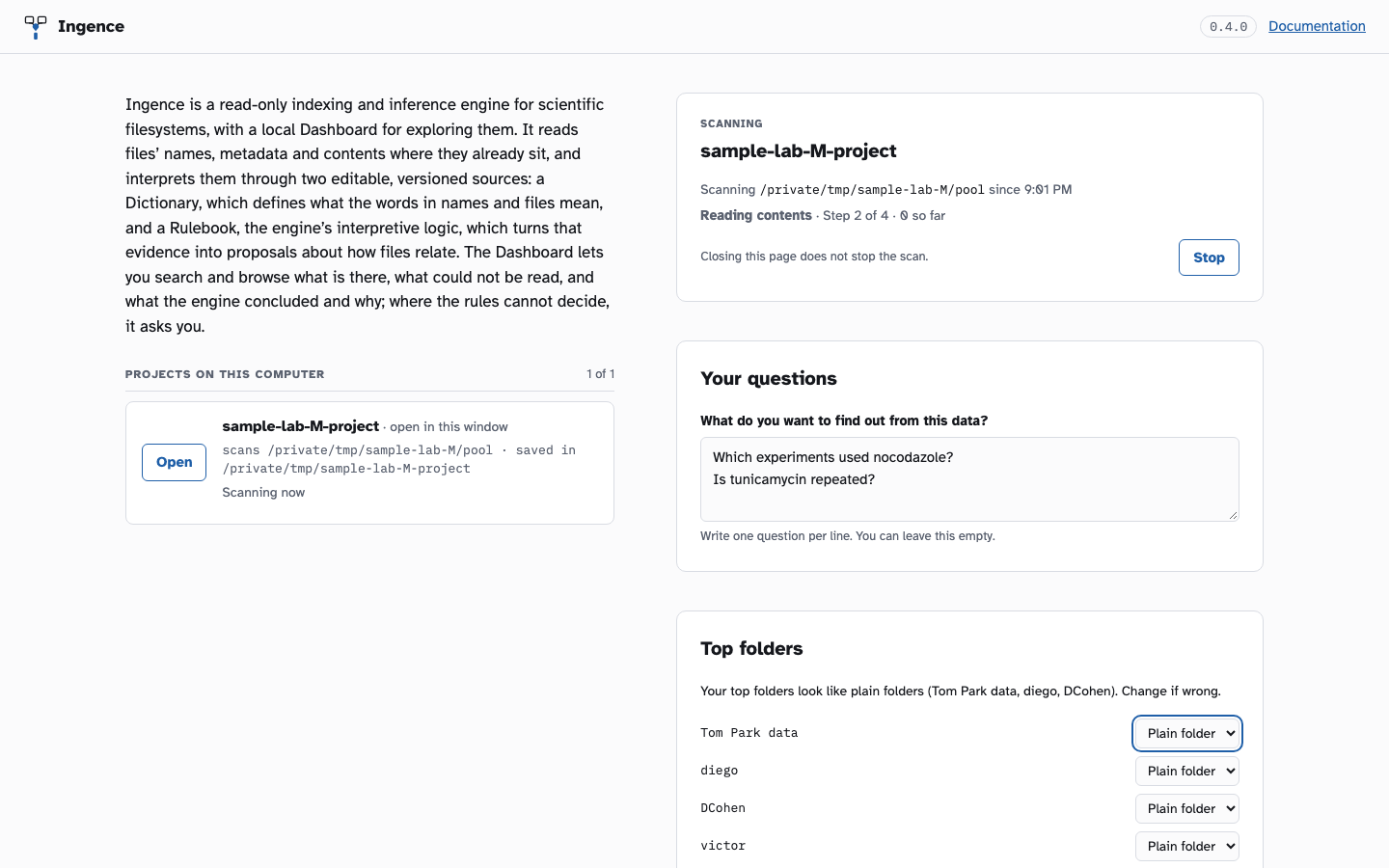
The landing page while a scan runs. The folders and names are invented.
Write your questions
Under the reading depth, a box asks: “What do you want to find out from this data? Write one question per line.” You can leave it empty. Ingence saves each question as a goal of the project.
Start the scan
Press Start scan. Ingence lists your files, reads their contents and applies its rules. The page shows the step it is on and what it has found so far, as counts.
The questions box stays on the page while Ingence scans. You can add a question or remove one. As the scan goes on, the page shows the experiments that match each question.
When the scan has listed your files, the page shows “Top folders”: Ingence’s guess of what each top-level folder is. For example, a folder can be a person, an instrument, a project or a date. If a guess is wrong, change it there.
Under “What to look at first”, three panels describe the Overview, Overlap and Experiments.
To stop the scan, press Stop. The page asks “Stop the scan?” and says what Ingence keeps. Press Stop again to stop the scan, or Cancel to let it go on.
When the scan ends
The Dashboard opens by itself, and shows the Overview with a short tour. What you see first explains each part.
Next: What you see first.